Flask Cyberpanel
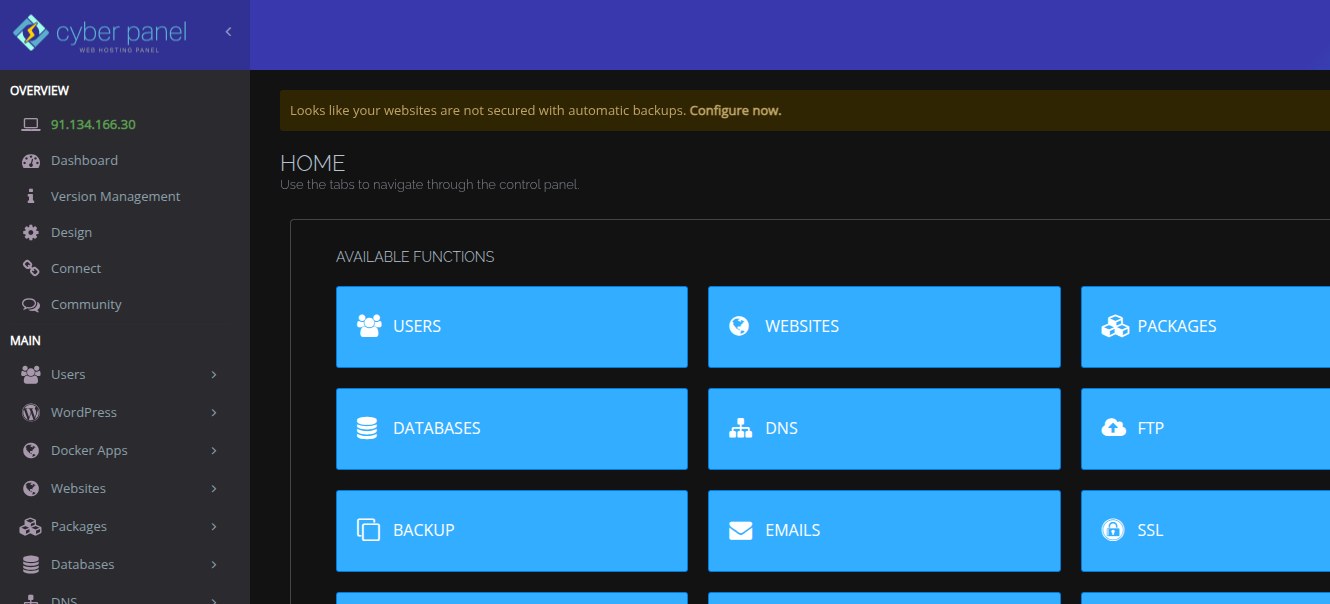
How to host or Deploy a Flask Python Application on a Cyberpanel Server.
With SMTP::
SMTP DETAILS
FLASK_APP=app
MAIL_SERVER=srv.lintsawa.com
MAIL_PORT=587
MAIL_USE_TLS=true
MAIL_USERNAME=dani@lintsawa.com
MAIL_PASSWORD=MGr3J3qupog3
RECEIVER_EMAIL=devinfo797@gmail.com
In this example, I'll be using Almalinux 8, Python version 3.8.20.
Steps
Step 1: Install Python First. You can refer to Python Section on how to install a specific Python version on your OS.
Step 2: Create a website on Cyberpanel for your Flask App.
For me, I'll be using a subdomain called "cyber-flask.lintsawa.com"
Step 3: Upload your Flask Application to the file manager public_html folder of your created domain.
Step 4: Login to your server via SSH.
Step 5: Create a virtual environment for your application.
python3 -m venv /home/cyber-flask.lintsawa.com/public_html/
Step 6: Activate the virtual environment.
source /home/cyber-flask.lintsawa.com/public_html/bin/activate
Step 7: Install your dependencies
pip install -r requirements.txt
Step 8: Create a WSGI entry point for your Flask app
It can be any file as passenger.py, or wsgi.py or passenger_wsgi.py.
For me I'll create passenger.py file on the root directory of my application.
Inside the file add the line below
Add a passenger.py file as the WSGI entry point for your Flask app
from app import application # Ensure application is defined in app/init.py
You should have something similar or close to this below.
/home/flaskapp.lintsawa.com/public_html/
├── app/
│ ├── init.py
│ ├── routes.py
│ ├── templates/
│ └── static/
├── passenger.py
├── requirements.txt
├── venv/ (virtual environment)
My app/init.py configuration is as below:
NOTE: This section may differ depending on how you've configured your application code. Adjust accordingly.
from flask import Flask
from flask_mail import Mail
from config import Config
mail = Mail()
def create_app():
app = Flask(name)
application = app
app.config.from_object(Config)
mail.init_app(app)

from .routes import main
app.register_blueprint(main)

return app
application = create_app() # Here Define application explicitly for the web server
The key line is: application = create_app().
This ensures application is a globally accessible variable.
If you don't get this part right, you may run into error 500 where you may see error as below.
tail -f /usr/local/lsws/logs/stderr.log
from flask import Flask
ModuleNotFoundError: No module named 'flask'
[UID:65534][248287] packetLen < 0
Traceback (most recent call last):
File "/home/kibe-cyberflask.lintsawa.com/public_html/passenger.py", line 1, in
from app import application
File "/home/kibe-cyberflask.lintsawa.com/public_html/app/init.py", line 1, in
from flask import Flask
ModuleNotFoundError: No module named 'flask'
[UID:65534][248287] packetLen < 0
^C
Step 9: Add the context inside vHOST on Cyberpanel.
Ensure you adjust the location, startupFile, and evn to match your application settings.
context / {
type appserver
location /home/cyber-flask.lintsawa.com/public_html
binPath /usr/local/lsws/fcgi-bin/lswsgi
appType wsgi
startupFile passenger.py
envType 1
env LS_PYTHONBIN=/home/cyber-flask.lintsawa.com/public_html/bin/python3
}
Step 10: Do a quick test to confirm your app is loading well.
Check Python Path for Flask
/home/cyber-flask.lintsawa.com/public_html/bin/python3 -m flask --version # This part uses your created virtual env. Get this right.
Test 2
Run passenger.py with Virtual Environment
Manually run the application using the virtual environment's Python binary:
/home/cyber-flask.lintsawa.com/public_html/bin/python3 passenger.py
No output should be displayed indicating all is working well.
Step 11: Restart your webserver - In this case, restart openlitespeed.
/usr/local/lsws/bin/lswsctrl restart
Step 11: Load your domain and it should be accessible online.
For me I did not have a home page thus the 404 error on home. But I had a route at /contact.
Troubleshooting.
Use command below to check for error messages and fix them.
tail -f /usr/local/lsws/logs/stderr.log
All Done!!